






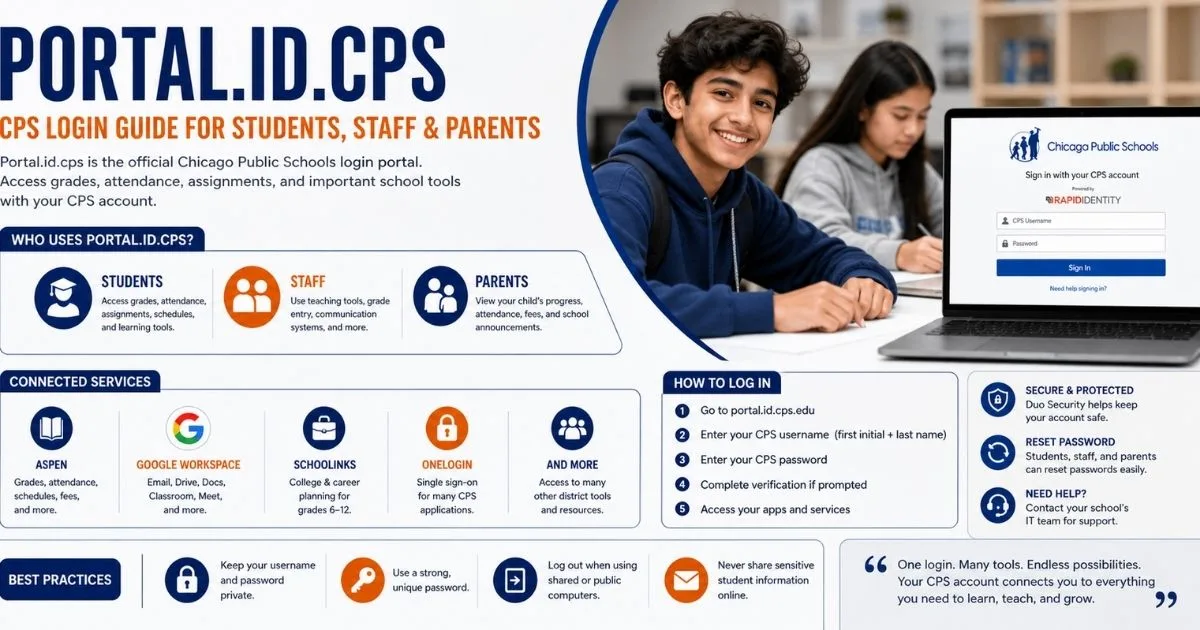
Every student, staff member, and parent connected to Chicago Public Schools needs a reliable starting point for accessing the district’s digital services. That starting point is portal.id.cps, the central identity and account management portal for the entire CPS network.
Whether you are a new student claiming your account for the first time, a teacher resetting a forgotten password, or a parent navigating the Aspen Parent Portal for the first time, portal.id.cps is where the process begins.
This guide covers everything about portal.id.cps in full detail, from how the system works and who uses it to step-by-step login instructions, password reset procedures, common problems, and the range of connected services that portal.id.cps provides access to.
What Is Portal.id.cps?
Portal.id.cps, accessed through the official URL portal.id.cps.edu, is the centralized digital identity management portal for Chicago Public Schools (CPS), the third-largest school district in the United States. It serves as the gateway through which all CPS students and staff access the district’s network of connected educational tools and platforms.
The portal runs on RapidIdentity, a secure identity and access management system that acts as a single sign-on hub for the entire CPS digital ecosystem. When a user signs into portal.id.cps with their CPS credentials, they gain access to the apps, platforms, and services their account is authorized to use, without needing to log into each service separately.
Portal.id.cps handles several critical functions for the CPS network. It allows new users to claim their accounts for the first time. It manages password resets and account recovery. It connects users to platforms including Aspen, Google Workspace for Education, OneLogin, and other district-approved learning tools. It also supports Duo Security, a multi-factor authentication system that protects account security for staff and certain student accounts.
The system is designed for use by all students and staff within Chicago Public Schools, one of the largest urban school systems in North America, serving approximately 320,000 students across more than 600 schools.
Who Uses Portal.id.cps?
Portal.id.cps serves three distinct groups within the Chicago Public Schools community, each with different access levels, login requirements, and connected services.
Students at every level of CPS, from elementary school through high school, use portal.id.cps to access their CPS accounts. All CPS students have Student Portal accounts, and the CPS username and password system is the standard credential used across student-facing platforms. Students access grades, attendance records, assignments, schedules, fee information, and health compliance records through the Aspen student portal once authenticated through portal.id.cps.
Staff members, including teachers, administrators, counselors, and support staff, use portal.id.cps as the entry point for their professional digital tools. Staff accounts typically have broader permissions than student accounts and connect to additional district systems including grade entry tools, attendance management, staff communication platforms, and administrative databases. Staff are directed to the official CPS Password Management website when they need account recovery assistance.
Parents and guardians connect to CPS digital services primarily through the Aspen Parent Portal, which operates on the same CPS credential infrastructure but through a separate access pathway. Parents use their own unique login credentials, which are set up through a verification process coordinated with their child’s school. Parents access their children’s grades, attendance, assignments, teacher communications, and school announcements through Aspen once their accounts are established.
How Portal.id.cps Fits Into the CPS Digital Ecosystem
Understanding portal.id.cps requires understanding the broader digital infrastructure that Chicago Public Schools has built around it. The portal is not an isolated tool. It is the authentication hub of an interconnected system of platforms.
Aspen is the student information management system that sits at the center of the CPS data infrastructure. It consolidates information from multiple district data sources into a single system. Aspen handles student grades, attendance records, scheduling, parent communications, fee management, and health records. Students access Aspen at aspen.cps.edu using their CPS username and password. Parents access a parallel version of Aspen through the Parent Portal using their own login credentials. Portal.id.cps authenticates users before they reach Aspen.
Google Workspace for Education (formerly G Suite for Education) is the productivity and communication suite used across CPS schools for email, documents, presentations, and video conferencing. Students and staff access their CPS Google accounts using CPS credentials, which are managed through the same identity system as portal.id.cps.
GoCPS is the district’s online enrollment and school application platform, accessible at apply.cps.edu. Families use GoCPS to apply to CPS schools and programs through a single application covering nearly the entire district. GoCPS has its own account system but connects to the broader CPS family data infrastructure.
SchooLinks is the college and career readiness platform used by CPS students in grades 6 through 12. It helps students and families build individualized college and career roadmaps. Parents access SchooLinks through their Aspen Parent Portal email address, creating a direct connection between the two systems.
OneLogin provides single sign-on functionality for certain CPS applications, allowing users who are authenticated through the CPS system to access connected tools without additional login steps.
Step-by-Step: How to Log Into Portal.id.cps
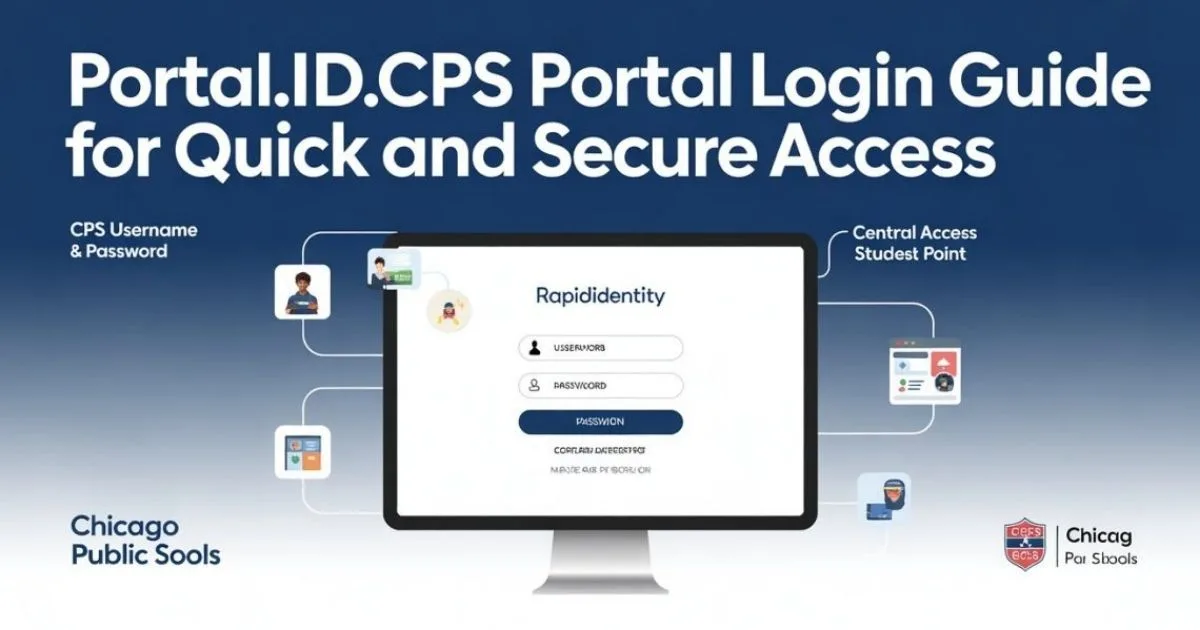
The login process for portal.id.cps follows a clear sequence. Following these steps precisely reduces the likelihood of login errors.
Step 1: Open the portal.id.cps login page. Navigate to portal.id.cps.edu in any web browser. The page loads the RapidIdentity login screen, which is the standard CPS identity management interface. The page works on all major browsers including Chrome, Firefox, Safari, and Edge, and is accessible from smartphones, tablets, laptops, and desktop computers.
Step 2: Enter your CPS username. The CPS username format typically consists of the first letter of the user’s first name followed by the full last name. For example, a student named Maria Johnson would have the username mjohnson. CPS support pages specifically warn users not to enter their full email address unless a school or CPS resource explicitly instructs them to do so. Entering the email address format instead of the username is one of the most common login errors.
Step 3: Enter your CPS password. Type the password carefully, checking for capitalization, spelling, and extra spaces. Saved passwords in the browser can sometimes be outdated, especially if the password was recently changed. It is worth typing the password manually if the auto-filled version does not work.
Step 4: Complete multi-factor authentication if prompted. Staff accounts connected to Duo Security will receive a verification prompt on their linked phone. Students may or may not be required to complete additional verification depending on their account type and grade level.
Step 5: Access connected services. After successful authentication, the portal displays the apps and services available to the account. Users can navigate to Aspen, Google Workspace, or other connected platforms from this dashboard.
How to Claim a New Account on Portal.id.cps
New students and staff who have never logged into portal.id.cps before must complete an account claim process before they can sign in. Attempting to log in without claiming the account first will not succeed.
The account claim process varies slightly depending on the user type. For new students, the process typically requires the following information: legal first name, CPS student ID number, and date of birth. These details are used to verify identity and connect the claim to the existing student record in the CPS database. Schools issue student ID numbers at enrollment, and families should have this number available before beginning the claim process.
For new staff members, the claim process uses employee identification information provided by the CPS Human Resources or Information Technology Services department at the time of hiring. New employees receive instructions for claiming their CPS account as part of the standard onboarding process.
Once the claim process is completed successfully, the user sets a password and, for staff accounts, links their phone for Duo Security multi-factor authentication. From that point, the account is active and can be used to access portal.id.cps and all connected services.
Password Reset: Student, Staff, and Parent Procedures
Password problems are among the most frequent reasons users search for information about portal.id.cps. The reset procedure differs significantly depending on whether the account belongs to a student, a staff member, or a parent.
Students can attempt a self-service password reset through portal.id.cps by clicking the Forgot Password link on the login screen. Some CPS school guidance indicates that the reset process involves answering three security challenge questions that were set up during the initial account claim. Students who cannot remember their challenge question answers must contact their school directly to have their password reset by a school technology coordinator or administrator. Students cannot use the parent password reset route.
Staff members are directed to the CPS Password Management website for all password-related account recovery. CPS staff pages point employees to this dedicated tool rather than the general portal.id.cps forgot password flow. Staff should have their employee number available when using the Password Management site, as this information speeds up the verification process.
Parents and guardians reset their Aspen Parent Portal passwords through the Parent Portal Password Reset button, which is accessible from the Aspen login page. Parents enter their Login ID and the email address associated with their account. A reset link is sent to that email address. If the email does not arrive within a few minutes, parents should check the spam or junk folder. Parents who cannot locate their Login ID or who have changed their email address should contact their child’s school to update the information in Aspen before attempting a reset.
Duo Security and Multi-Factor Authentication on Portal.id.cps
Chicago Public Schools has implemented Duo Security as the multi-factor authentication layer for staff accounts connected to portal.id.cps. Duo Security is a widely used enterprise security tool that requires users to verify their identity through a second device, typically a smartphone, in addition to their username and password.
The implementation of Duo Security on portal.id.cps reflects the district’s commitment to protecting sensitive student and staff data from unauthorized access. A stolen password alone is insufficient to access a Duo-protected account. The attacker would also need physical access to the authenticated phone, which is a significant additional security barrier.
Staff members setting up Duo for the first time must download the Duo Mobile app on their smartphone and link it to their CPS account during the setup process. Once linked, each login attempt to a Duo-protected CPS service generates a push notification on the phone, which the user approves to complete authentication.
Students at certain grade levels may also encounter additional verification steps depending on their account configuration and the specific tool they are accessing. Parents are not typically required to use Duo Security for Aspen Parent Portal access but must maintain a secure and unique password for their account.
What Students Can Access Through Portal.id.cps
Once authenticated through portal.id.cps, students gain access to a comprehensive set of educational tools and information resources. Understanding what is available helps students make full use of the system.
Through the Aspen Student Portal at aspen.cps.edu, students can view current grades for all enrolled courses in real time, attendance records including individual period attendance and full-day absences, class schedules and course enrollment information, assignment details and due dates as entered by teachers, fee balances and payment history, and health compliance records including immunization documentation.
Through Google Workspace for Education, students access their CPS Gmail account for school communications, Google Classroom for teacher-assigned digital coursework, Google Drive for document storage and collaboration, Google Meet for virtual meetings and video learning sessions, and Google Calendar for scheduling and assignment tracking.
Students in grades 6 through 12 also access SchooLinks for college and career planning, including tools for exploring colleges, building resumes, tracking application deadlines, and connecting with career pathway programs offered through the CPS network.
Additional learning platforms and subject-specific tools are available to students depending on their grade level and the specific courses they are enrolled in. These tools vary by school and are typically accessible from the applications dashboard visible after login.
What Parents Can Access Through Aspen Parent Portal
Parents and guardians connected to portal.id.cps through the Aspen Parent Portal have access to a set of features specifically designed for family engagement and oversight of student progress.
Real-time academic information is the most used feature. Parents can view their child’s current grades, attendance records, and assignment information as entered by teachers. Updates appear in the parent view as teachers update the system, making it possible to identify academic concerns without waiting for formal report cards.
The E-Absence reporting tool allows parents to report planned or unexpected student absences directly through the portal, reducing the need to call the school’s main line. This feature is particularly useful for families managing multiple communication channels.
Online fee payment is available through Aspen for families who prefer to manage school fees digitally. Fee balances, payment history, and payment submission are all handled within the portal.
Teacher and school communication features allow parents to receive and send messages related to their child’s progress through the Aspen messaging system. School announcements and important district communications also appear within the parent view.
Parents with multiple children enrolled in CPS can link all children to a single parent account, providing a consolidated view of each student’s information without requiring separate logins for each child.
Common Portal.id.cps Problems and How to Fix Them
Several recurring issues affect portal.id.cps users across the CPS network. Knowing how to address these problems quickly reduces frustration and restores access faster.
Wrong username format is the most frequently reported login error. CPS support consistently reminds users to enter the username portion of their CPS ID rather than the full email address. If the system rejects a login, checking that the username does not include @cps.edu or any other domain extension is the first step.
Outdated browser-saved passwords cause repeated login failures when a password has been changed but the browser continues autofilling the old version. Clearing the browser’s saved passwords for the portal.id.cps domain or typing the password manually resolves this issue.
Expired passwords require the user to go through the appropriate reset process rather than attempting to create a new account. Creating a duplicate account is not possible within the CPS system and attempting to do so will not resolve an expired password situation.
Account not yet claimed is the issue for all new students and staff who have never completed the initial setup. The portal will not permit login until the claim process is finished. First-time users should look for the claim account option on the portal.id.cps page or follow instructions provided by their school.
Inactive account status can occur when a student leaves CPS, when a staff contract ends, or when an account has not been used for an extended period. Schools or the CPS Information Technology Services department can reactivate accounts for users who return to the district.
Browser compatibility issues occasionally cause display problems with the RapidIdentity login page. Switching to Google Chrome or clearing the browser cache typically resolves display issues. Disabling browser extensions that interfere with login pages is also worth attempting if the standard steps do not work.
Read also: Serlig Explained: What It Means, Where It Came From, and Why It Matters Today
How to Get Help With Portal.id.cps
Multiple support channels are available to CPS students, staff, and parents who experience problems with portal.id.cps that cannot be resolved through self-service steps.
School-based IT support is the first point of contact for most student and parent issues. Technology coordinators at individual schools can reset student passwords, troubleshoot account claim problems, update parent contact information in Aspen, and resolve most common access issues. Contacting the school directly is the fastest route to resolution for account problems that require verification.
CPS Information Technology Services handles more complex account and system issues, particularly for staff members. The ITS Service Desk can be reached for issues involving Duo Security setup, staff account configuration, and district-level system errors that affect multiple users.
The official CPS website at cps.edu provides written guidance, video tutorials, and FAQ resources covering the most common portal.id.cps questions. The Parent and Student Portal section of the site is particularly useful for families setting up accounts for the first time.
Chicago Public Library branches offer computer access to CPS families who need to use the portal but do not have devices at home. A valid Chicago Public Library card provides access to library computers at any branch location.
Portal.id.cps Security Best Practices
Using portal.id.cps safely requires following basic security practices that protect both the individual user’s account and the broader CPS network.
Never share a CPS username or password with anyone, including other family members. Each student, staff member, and parent should maintain their own unique account credentials. Sharing account access violates CPS security policies and increases the risk of unauthorized access to sensitive student data.
Never share sensitive student information such as student ID numbers or dates of birth through email or text messages. If this information needs to be shared for account setup purposes, CPS recommends doing so in person or over a phone call rather than in writing.
When setting up security challenge questions for a student account, choose questions whose answers are not publicly available or guessable from social media profiles. Invented or unusual answers to security questions provide better protection than obvious personal facts.
Log out of portal.id.cps and all connected services when using a shared or public computer. The browser session for RapidIdentity and Aspen remains active until explicitly ended, which creates a risk if the computer is used by another person afterward.
Use a strong, unique password for the CPS account that is not used for any other service. Passwords should be at least eight characters and include a combination of letters, numbers, and symbols. Avoid using easily guessable information such as birthdates or student ID numbers as passwords.
Portal.id.cps and Chicago Public Schools: Background
Chicago Public Schools is the third-largest school district in the United States, serving approximately 320,000 students across more than 600 schools in the city of Chicago, Illinois. The district employs tens of thousands of teachers and staff members. Managing digital identity and access at that scale requires a robust, centralized system, which is the function portal.id.cps was built to serve.
Before portal.id.cps and the unified RapidIdentity system, CPS users navigated a fragmented digital environment in which different platforms used different credentials and there was no central account management point. The consolidation of identity management through portal.id.cps reduced friction for users, improved data security, and made it possible to connect platforms like Aspen, Google Workspace, and OneLogin through a single set of credentials.
The Aspen student information system that portal.id.cps connects to replaced an older system and consolidated five separate data sources into a single database. This consolidation gave teachers, administrators, parents, and students a coherent view of student data that was previously scattered across incompatible systems.
CPS continues to invest in its digital infrastructure as part of a broader commitment to technology-supported learning and family engagement. Portal.id.cps represents the foundational layer of that infrastructure, providing the secure identity management that makes everything else in the CPS digital ecosystem possible.
Conclusion
Portal.id.cps is the essential starting point for every digital interaction between Chicago Public Schools and its students, staff, and families. It manages identity, enables secure access, connects users to Aspen, Google Workspace, and dozens of other educational tools, and provides the account management functions that keep the entire system running smoothly.
Whether the task is claiming a brand-new account, resetting a forgotten password, setting up Duo Security for a staff role, or simply logging in to check grades and attendance, portal.id.cps is where the process begins and where reliable access is established. Understanding how the portal works, what it connects to, and how to solve common problems makes every subsequent interaction with the CPS digital ecosystem faster, simpler, and more secure.
For the hundreds of thousands of students, parents, and educators who rely on Chicago Public Schools every day, portal.id.cps is one of the most practically important web addresses in the district’s entire digital infrastructure.
Frequently Asked Questions
What is portal.id.cps?
Portal.id.cps, officially at portal.id.cps.edu, is the centralized identity management and account access portal for Chicago Public Schools. It uses the RapidIdentity platform to provide single sign-on access to CPS educational tools including Aspen, Google Workspace, and OneLogin for all students and staff.
How do I log into portal.id.cps for the first time?
New students and staff must complete an account claim process before logging in. This typically requires your legal first name, CPS student or employee ID number, and date of birth. Once the account is claimed and a password is set, you can log in at portal.id.cps.edu using your CPS username and password.
What is the username format for portal.id.cps?
The CPS username typically consists of the first letter of your first name followed by your full last name. For example, John Smith would have the username jsmith. Do not enter the full email address format unless specifically instructed by your school or a CPS support page.
How do I reset my password for portal.id.cps?
Students click the Forgot Password link on the portal.id.cps login screen and answer their security challenge questions. Staff use the CPS Password Management website. Parents use the Parent Portal Password Reset option on the Aspen login page. Students who cannot answer their challenge questions must contact their school for a manual reset.
What can students access through portal.id.cps?
After logging in through portal.id.cps, students can access Aspen for grades, attendance, and schedules, Google Workspace for email and classroom tools, SchooLinks for college and career planning (grades 6 through 12), and other subject-specific learning platforms assigned by their school.
Read also: Sonam Wangchuk’s Contributions to Social Causes: Education, Climate, and Community Change in Ladakh